

Uploads
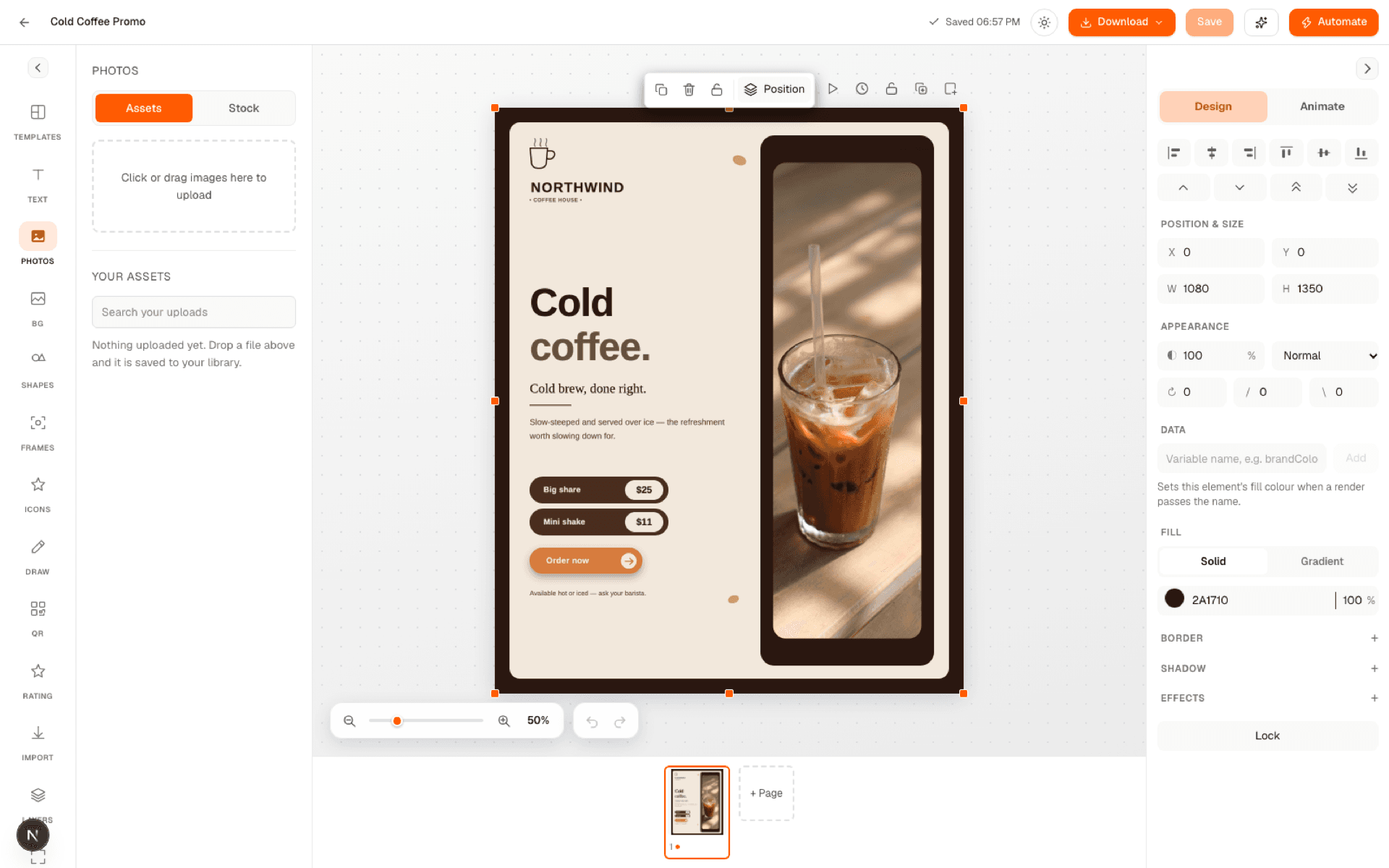
Upload images, fonts and icons for use in the studio's image and font pickers. Every upload is deduplicated by content, so uploading the same file twice reuses the existing asset rather than storing it again.
| Param | Type | Notes |
|---|---|---|
| image | kind | png, jpeg, webp, gif, avif, svg. Capped at 10 MB. |
| font | kind | woff2, woff, ttf, otf. Capped at 5 MB. |
| icon | kind | SVG, sanitized on upload. Capped at 512 KB. |
A single upload request is capped at 15 MB — above the per-kind limits, this is the outer limit on the request itself.
Storage quota
Every upload counts against your plan's included storage, measured in MB and shared across every workspace on the subscription (not per workspace). Uploading a file that would push you past the limit is refused; re-uploading a file you've already uploaded is free (it's deduplicated), and deleting an asset frees its bytes back up. Plans without a storage cap show it as unlimited.
Import from Google Drive / Dropbox
Connect Google Drive or Dropbox from Integrations to browse files in either provider and import them straight into the workspace's asset library, without downloading and re-uploading by hand. Imported files go through the same type and size checks as a direct upload, and count against the same storage quota — a file that would exceed either is skipped rather than imported.
Stock photos
Search royalty-free stock photography directly from the studio's image picker, and drop a result straight into an image layer — no upload step needed. Leaving the search empty returns a curated default feed instead of an empty state.
Extract text from an image
Select an image already on the canvas and extract its text — useful for pulling copy out of a screenshot or a flattened graphic you're rebuilding as an editable design. Recognition runs server-side (English only) and returns one block per recognized line, each with its bounding box so you can place the text back where it was.
Lines the engine isn't confident about are dropped rather than returned as noise — only text recognized at 85% confidence or higher comes back.
Was this page helpful?